
Fixing the Real Bottleneck in BIM with Solibri CheckPoint
Why Local Setup Still Slows Model Checking
Model checking is supposed to help teams catch issues early, when fixes are cheaper and coordination is easier. But in many firms, the reality is uneven.
Some teams have strong processes, the right staff, and the right machines to run checks consistently. Others rely on ad hoc review, manual visual inspection, or a single person who owns the “model checking task” for everyone.
Jason summed up Solibri’s purpose in plain terms: catch expensive model issues early, and help teams trust the information in the model.
In this session, the word “trust” came up many times. Not speed. Not automation. Trust. Because if teams do not believe the checks are consistent and repeatable, the workflow quietly collapses.
The setup barrier usually shows up in familiar ways:
-
Tools that require local installation and maintenance
-
Results that are difficult to share and act on as a team
-
Checking that happens in isolation, then gets emailed as a report
-
Workflows that assume high performance machines for heavy models
None of these are dramatic problems on their own. But together, they create a quiet delay in projects. Model checking becomes something teams “get to later” instead of something embedded early.
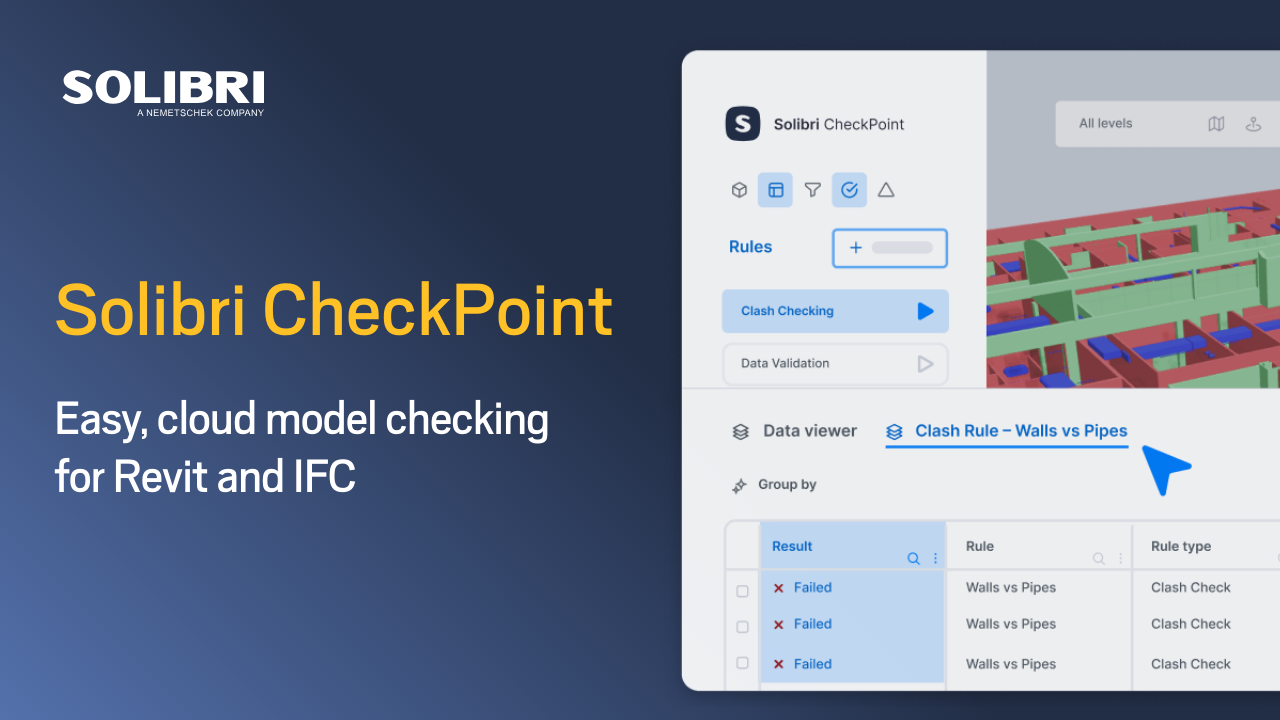
CheckPoint is built to remove that friction, especially for teams that want to review native Revit models without extra steps.
“It's cloud-based and it really fills a big gap that we had especially for US firms and that is being able to support Revit files natively without that need to export to IFC.” - Jason Reichel
What Solibri CheckPoint Is
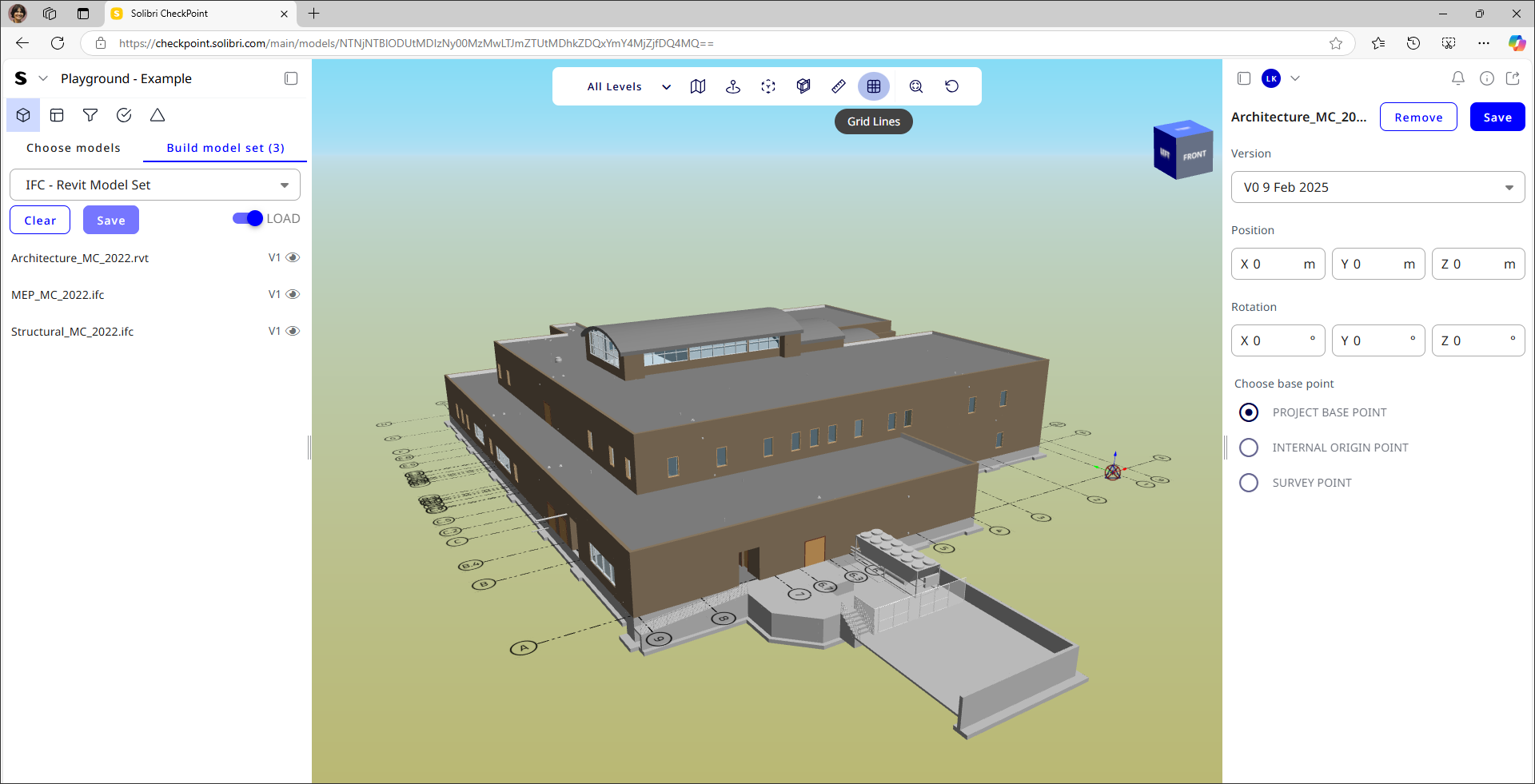
Ward described Solibri CheckPoint as a model checker you run right in your browser. No local installation is required. You use it in a normal web browser, while the heavy 3D processing runs in the cloud.
This isn’t about the cloud label. It’s about speed and access: more people can participate, and setups don’t drag.
Ward also highlighted practical account controls many firms expect, including multifactor authentication and single sign on with Microsoft accounts.
What “Heavy 3D Work in the Cloud” Means in Daily Practice
The most practical point in the talk was not a new feature. It was a workflow reality.
When models get larger, many desktop workflows quietly become dependent on the best machines in the office. That can create a bottleneck. The checking step becomes something that only happens on certain workstations, by certain people, at certain times.
In the CheckPoint approach described by Ward, the user works in the browser, and the system handles the 3D processing in the cloud. The intention is to reduce dependence on high performance local machines and reduce the manual overhead that often comes with desktop processes.
In many firms, this bottleneck is invisible. It is not written into a process document. It just becomes understood that “only certain machines” or “only certain people” run checks. That subtle constraint shapes how often quality assurance actually happens.
Where Models Come From: Integrations That Keep Everyone on the Same Version
Setup friction also shows up in how many times files have to get passed around. If your checker has to track down the newest model, download, convert it, and then upload it again somewhere else, you’ve already burned time before the real QA even starts.
CheckPoint is meant to plug into the platforms teams already use, so it fits into existing workflows. In the demo, Ward showed integrations with:
-
Trimble Connect
-
Microsoft OneDrive/SharePoint
-
Autodesk Construction Cloud (ACC)/BIM 360
The idea is simple: If your model is stored in one of these platforms, getting it into CheckPoint shouldn’t turn into a whole separate process.
If your models still live on local folders, CheckPoint supports direct uploads until you move to a shared cloud workspace.
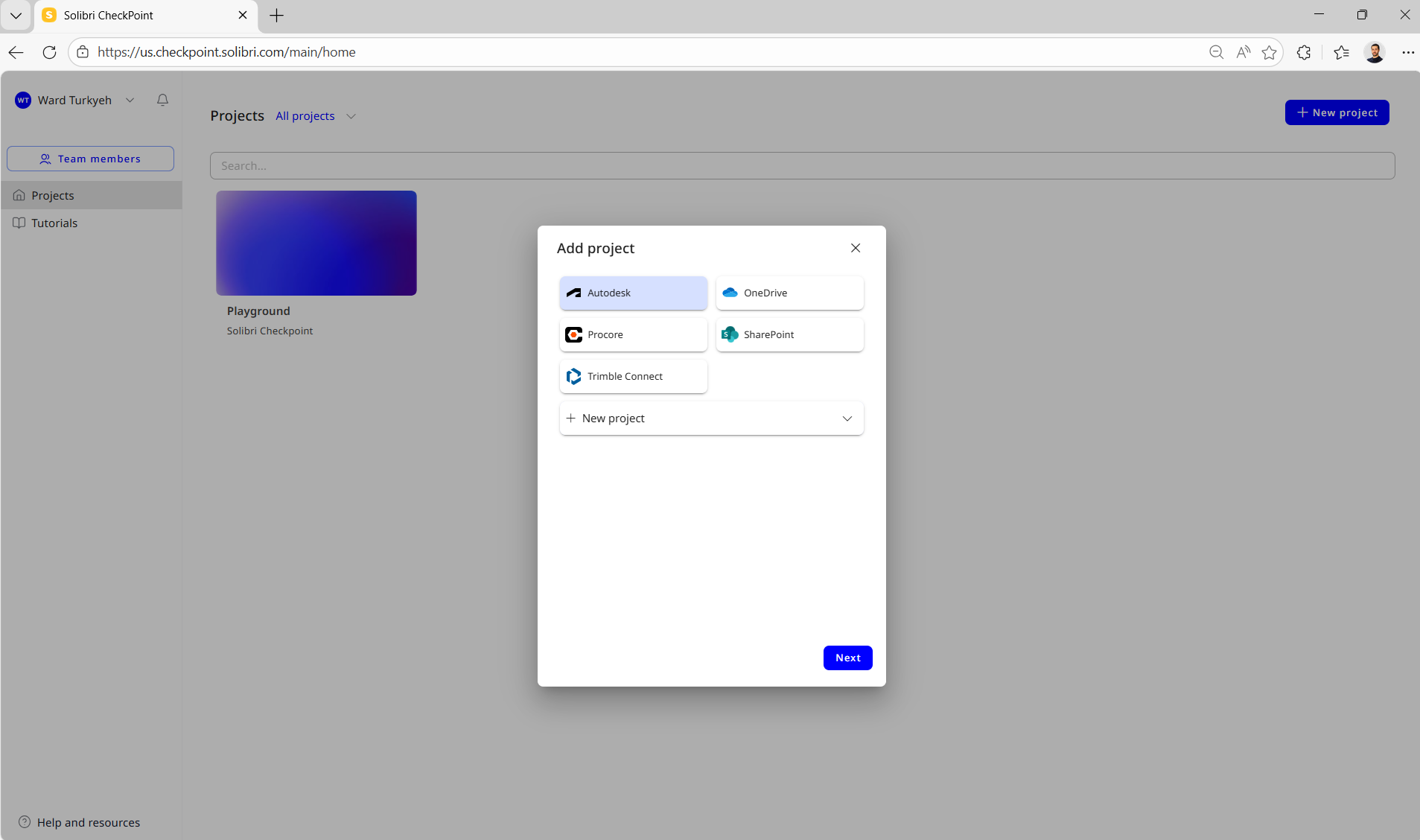
Figure 4. Pull the latest models from Autodesk Construction Cloud, BIM 360, Procore and other CDE’s directly into Solibri CheckPoint.
Collaboration in One Place: Sharing Projects With Access Roles
Local setup barriers often lead to another barrier: only a few people run checks, and everyone else waits for results.
CheckPoint is positioned to support a more collaborative model checking process. Ward showed how teams can manage members and share projects with two groups:
-
Internal users within the same organization
-
External users who are CheckPoint users outside the company
When sharing, the user selects an access role such as project admin or project member. That matters because collaboration only works when control is clear.
In practice, model checking has often been centralized. One specialist runs the rules. Everyone else waits for a report. A browser-based workflow quietly challenges that structure.
Ward also clarified that collaboration is real time. Multiple people can work in the same place at the same time, run their own rules, and exchange content through the project library.
A Quick Look at the Checks: Practical Quality Work, Not Just Viewing
While the focus of this article is local setup barriers, removing friction only matters if the checking experience itself is practical.
Three core categories of checks that show up in everyday coordination:
1) Clash checking, with better review of results
Jason pointed to a familiar pain with older clash workflows: you run a check and get dumped into one long, flat list that’s hard to make sense of. This is a common frustration shared by project teams using legacy clash tools.
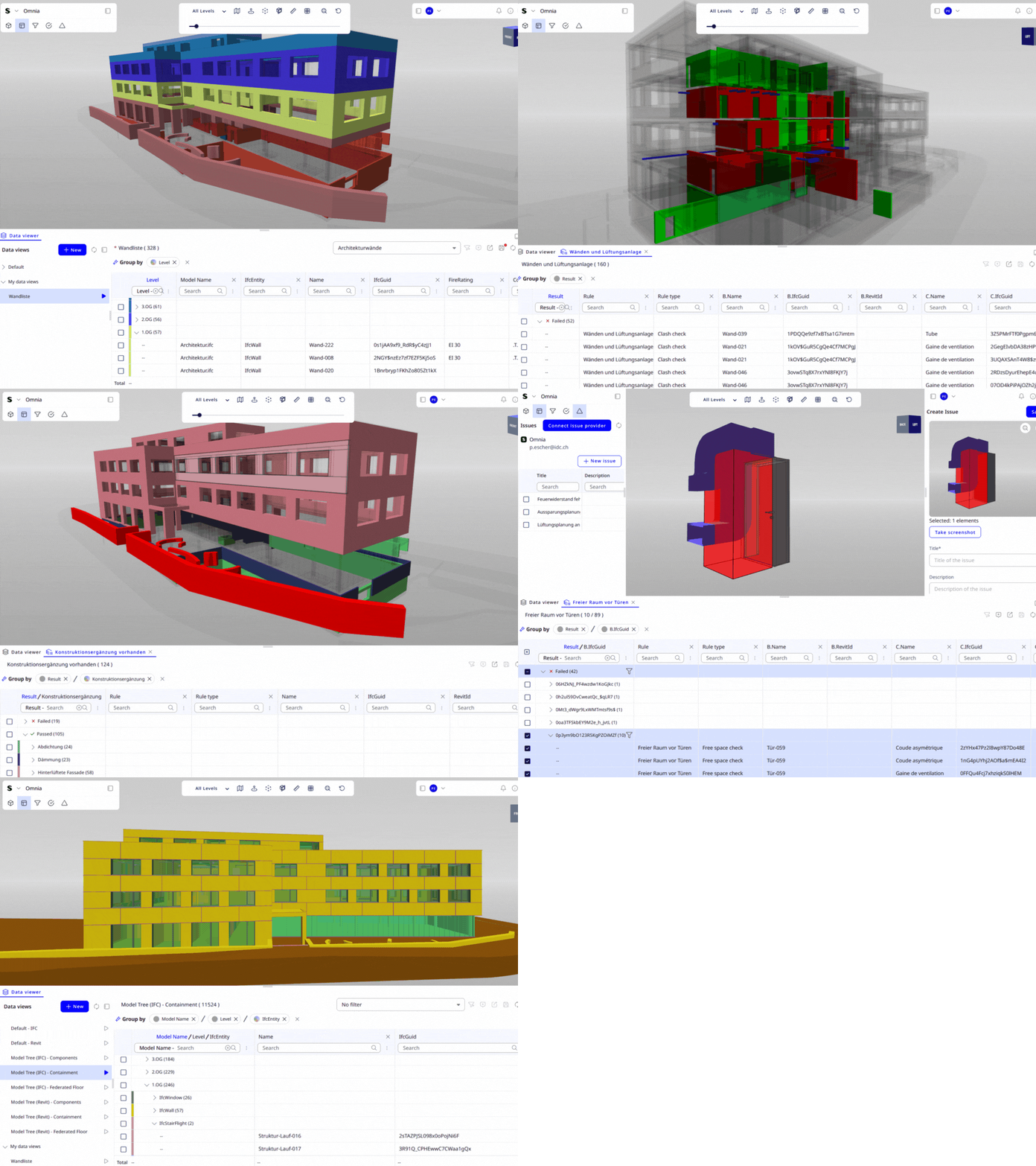
Ward used the Data Viewer to make results easier to triage. Results can be grouped by model name and category in a matrix-like view, which helps teams see patterns quickly, not just count problems.
He also demonstrated filtering out Revit “Areas” to reduce noise and make clashes more reliable. That kind of filtering is a small detail, but it is the difference between a check that produces action and a check that produces frustration.
2) Clearance checks without extra Revit modeling
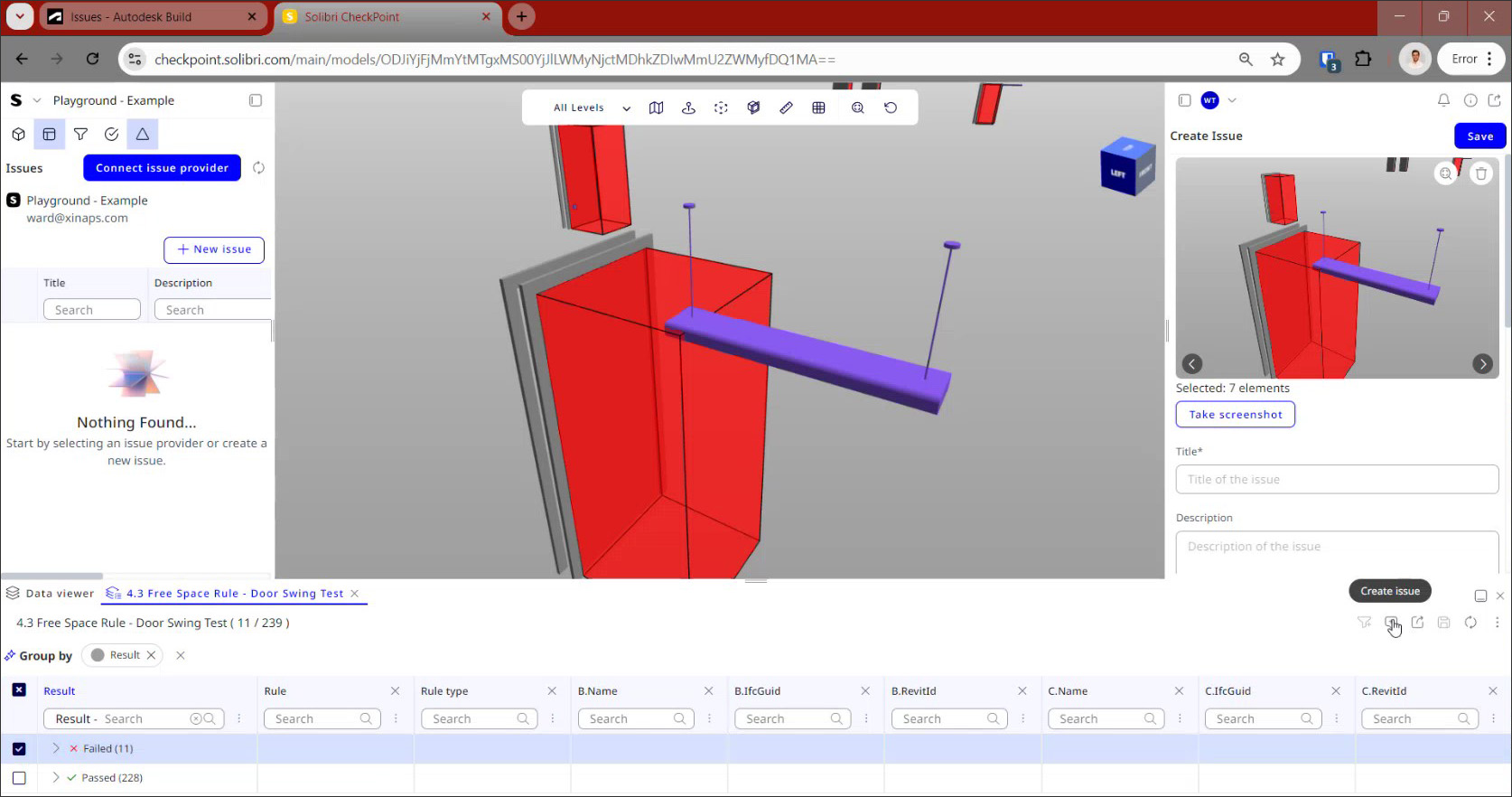
Clearance checks often create extra work because teams model clearance geometry in Revit just to detect soft clashes. Ward showed a different approach using the Free Space Check.
Instead of creating clearance objects in the model, the rule creates a clearance geometry around a target element and checks for intersections. In the demo, he used examples like a defined clearance below heat recovery units for maintenance access, and clearance zones around doors.
He also showed a practical workflow detail: copying long category lists from Excel and pasting them into the rule setup. That reduces repetitive clicking and makes checks easier to standardize.
3) Data validation, not just geometry
A key point from the talk was that model checking goes beyond just clash detection. Ward walked through simple property checks – things like making sure level names follow the standard, and that furniture is tagged with the right OmniClass codes.
“A lot of people confuse model checking for clash detection. They think that model checking is only clash detection and that's not the case. Model checking means that I want to make sure that everything is reliable in my model from the geometrical checks to the data checks that I have in the model.” - Ward Turkyeh
This matters because a lot of downstream work relies on trusted data, not just geometry that looks right.
From Checks to Action: Syncing Issues to ACC
A common gap in model checking workflows is what happens after a problem is found. A report is created, then someone manually recreates issues somewhere else, or issues live in emails and screenshots.
In the demo, Ward showed how issues can be created in CheckPoint and pushed directly to Autodesk Construction Cloud when the project is connected. The workflow included taking a screenshot, assigning the issue, setting a due date, and saving it.
He also described the connection as two-way, meaning updates can be made in ACC or in CheckPoint and stay aligned.
Adoption by Design: Built for Teams With No Time for Heavy Training
Removing local friction is only half the job. Adoption is the other half. Just because a tool runs in the cloud doesn’t mean it’s easy to learn. CheckPoint is positioned for teams that cannot allocate extended onboarding cycles. The workflow centers on a clear sequence: model → views → filters → rules → issues. In-app tutorials support structured adoption.
This matters because the value of cloud based checking is not just “no installs.” It shortens onboarding, makes sharing straightforward, and lets more people take part in the workflow.
Solibri CheckPoint in Context: Expanding Access to Rule-Based QA
For many US firms, digital coordination already lives inside Revit and cloud-based platforms like Autodesk Construction Cloud. The question is no longer whether to run checks — it is how to run them consistently across distributed VDC teams without creating hardware or deployment bottlenecks.
Solibri CheckPoint addresses that operational reality. It delivers rule-based model checking directly in the browser, with native Revit support and integrations aligned with the cloud environments many U.S. contractors and design firms already use. That reduces the friction between model creation, validation, and issue tracking — especially in multi-office or hybrid project teams.
CheckPoint is built around rapid deployment and shared rule execution. It enables broader participation in QA without requiring local installations or high-performance workstations. For firms scaling VDC practices across regions, that flexibility matters.
At the same time, Solibri Office is the comprehensive desktop environment for advanced model validation, openBIM workflows, and highly customized QA strategies. It supports structured quality control processes across complex federated models and regulatory-driven projects.
Both solutions are grounded in the same principle: repeatable, rule-based validation that reduces rework risk and strengthens trust in model data.
The difference is not capability — it is deployment context. Solibri ensures that model checking remains consistent whether executed in a structured desktop QA environment or a distributed, cloud-first workflow common across the US market.
Takeaway: What reduced Local Setup enables
When checking operates in the browser and compute executes in the cloud, teams reduce hardware dependency, shorten validation cycles, and distribute QA more broadly across project participants.
Earlier, distributed QA directly reduces rework risk before coordination costs escalate. The differentiator then shifts to rule consistency, data validation rigor, and integration into issue management systems.
The more relevant question may not be whether cloud-based checking is faster but whether it changes who participates in quality assurance and when it occurs. The rest of the workflow then becomes the differentiator: how teams filter noise, group results, validate data, and push issues into the systems where project work actually happens.
About the presenters

Jason Reichel – Country Manager, Americas, Solibri
Leads the Americas team at Solibri, with two years at Solibri and a background spanning AEC technology and structural engineering for over 25 years.

BIM consultant specializing in digital model checking and Customer Success Manager for Solibri CheckPoint, focused on helping teams adopt cloud based checking workflows.
👉 To learn more, visit Solibri CheckPoint’s official page on aec+tech or explore the latest features and request access on the Solibri CheckPoint website
Recent Articles
Learn about the latest architecture software, engineering automation tools, & construction technologies